How to make a tier list, from S tier down to F
A tier list ranks things into rows, from glorious S tier down to the stuff you would rather not talk about. It is the quickest way to turn an opinion into something people feel they have to answer.
How a tier list works
Each row is a tier, labeled on the left, and each item is a tile inside it. Higher rows are better, and within a row the leftmost item reads as the best. The S on top is borrowed from video game grading, where an S rank beats an A. Nobody fully agrees on what the letter stands for, and nobody needs to.
The tiers are coarse on purpose. You never have to decide whether ironing is seventh or eighth, only whether it is a C. That makes a tier list faster to make than a numbered ranking, and much easier to argue with, which is half the fun.
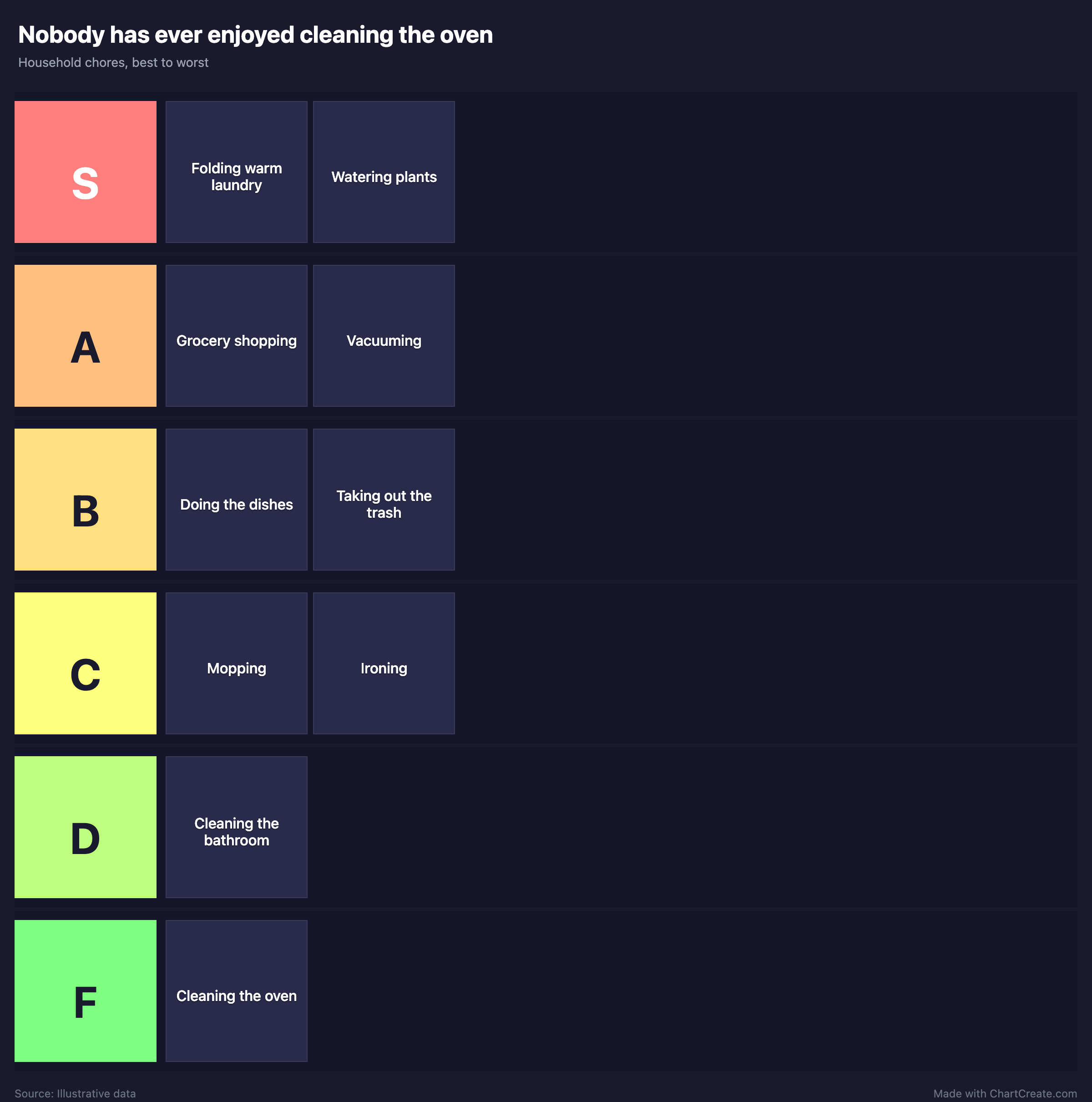
The chores board has the shape of a good tier list: two clear favorites at the top, a busy middle where the real debate happens, and one item alone at the bottom that everybody saw coming. A lonely F tier is funnier than a crowded one. If you find yourself putting six things in S, the list is not done yet.
When to use one, and when not to
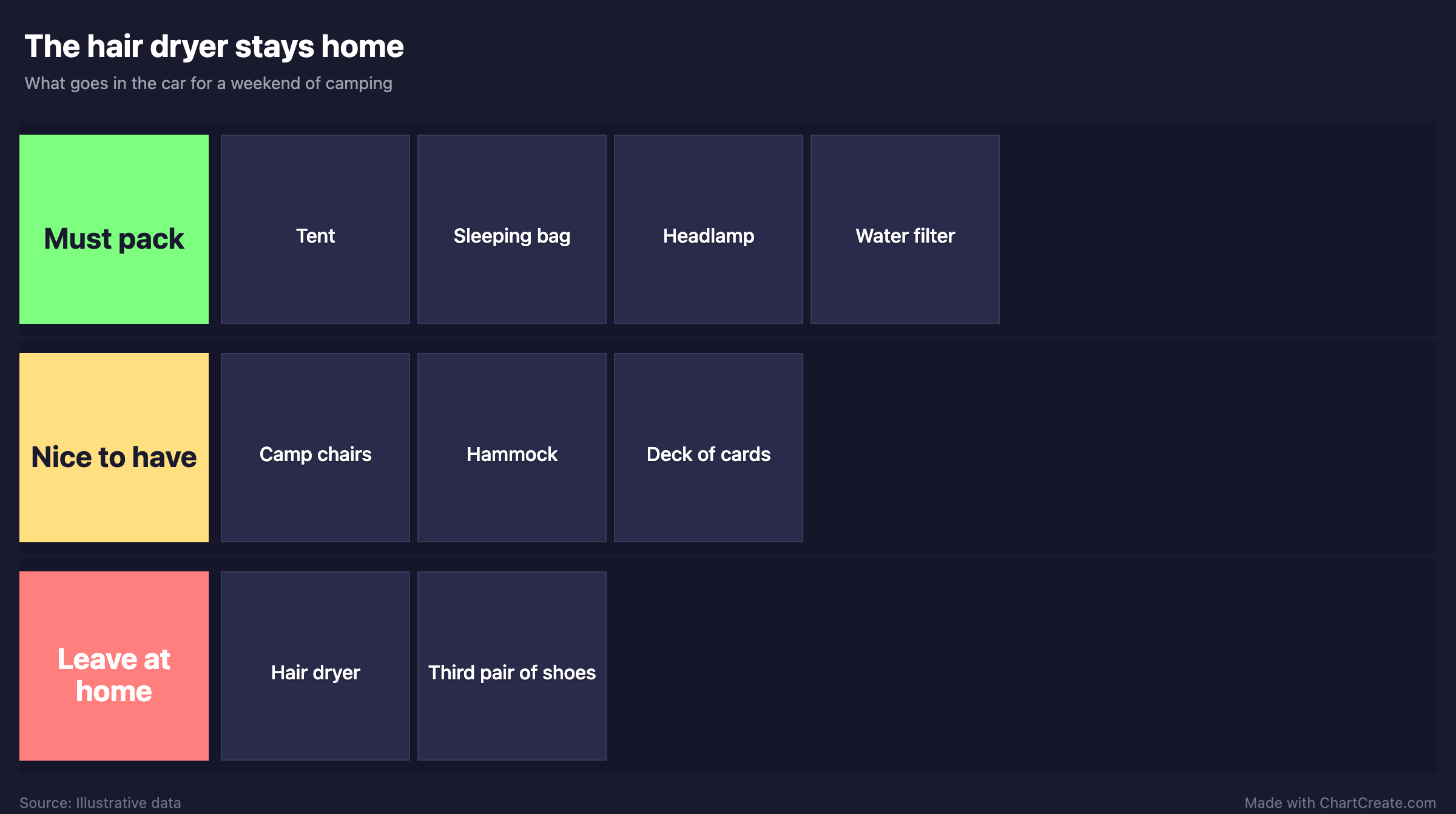
Reach for a tier list when the question is "how good is each of these?" and you have somewhere between eight and forty items. It handles pure opinion, but it also works for real decisions. Rename the tiers and the same board sorts a packing list, a backlog or a shortlist of suppliers.
If you have actual scores, use a bar chart instead: it shows the gaps between items, where a tier list hides them inside a row. If things differ on two qualities at once, an alignment chart puts them on two axes. And if you need one winner rather than a ranking, run a bracket.
Making one in ChartCreate
Everything is editable on the board. Drag items between tiers, or sideways to reorder them within a tier. Click an item to rename it, click a tier label to rename the tier, and use the dot in its corner to change its color. Drop images onto a tier and each one becomes a new item; switch off Show Item Labels in the Style tab if you want the pictures without names.
The Data tab holds the full list, an Add Tier button for up to ten tiers, and a Tier Scale menu with ready-made scales such as Top / Good / Mid / Bad and Yes / Maybe / Absolutely not. Nothing gets lost along the way: when you remove a tier, its items move to an Unranked row at the bottom until you place them again.
When the board is finished, download it as a PNG or JPG. For Instagram or Reddit, pick the square or portrait shape first and the board is padded to fit instead of cropped. It is free with no account, and the image carries a small "Made with ChartCreate.com" credit.
Want it to move? Choose Reveal video in the Download menu and the board fills in item by item, from the bottom tier up to S, so the best pick lands last. It downloads as a video or a GIF, in the board shape, square, portrait or a 9:16 frame for TikTok, Reels and Shorts, with the same credit in the corner.
Mistakes to avoid
Too many tiers. Five or six is plenty; past that, the difference between neighboring tiers stops meaning anything. Long names are the other trap. A tile has room for a few words, so write "Ironing", not "Ironing shirts on a Sunday night".